How to Backup of AD and System State on Server 2008 R2, P-1
- Details
- Last Updated: Sunday, 15 March 2015 10:18
- Hits: 8369
Article Index
This article will help you to how to backup of active directory on windows server 2008 by using command line wbadmin because windows server 2008 not support NTBACKUP. But yes if you have windows server 2008 R2 then you can do via GUI (Graphical User Interface) or command line for backup system state.
What will include in System state backup -
When you run command for system state backup it will include following backup automatically.
1. Active Directory
2. Boot files
3. COM+ files
4. Registry
5. SYSVOL Directory
6. Certificate database
7. Cluster service information
Before backup of AD in server 2008 need to install the backup features from the Server Manager, for install backup features in server follow these step.
Enable Windows Server Backup features from Server Manager
Steps 1 – Open Server Manager from Run type – ServerManager.msc
- Or - Press StartMenu click Server Manager
- Or - Open MMC and Add Remove Snap-in and Add server manager
- Or – Right Click on My Computer then click Manage
Steps 2 – Expend server name and Click Features
Steps 3 – Click Add features (Right Top)
Steps 4 – Scroll and Check on Windows Server Backup and Command-line tools in Windows Server backup Features
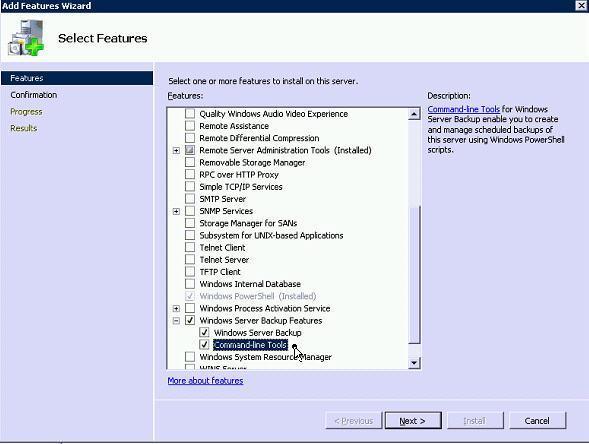
Steps 5 – Click Next and Then Click Install
After installation of windows backup features, I need to take backup of Active directory.
For backup of active directory I have to backup of System state in server 2008 from the windows Server backup command Line tools.
System State Backup From Command-Line Utility.
Steps 6 – Open command prompt by Typing CMD on Run
Steps 7 – Type “wbadmin start systemstatebackup -backuptarget:F:\BACKUP”
Where f:\BACKUP is your backup destination path and you can choose a different one.
Steps 8 – Now press Y for Start the system state backup.
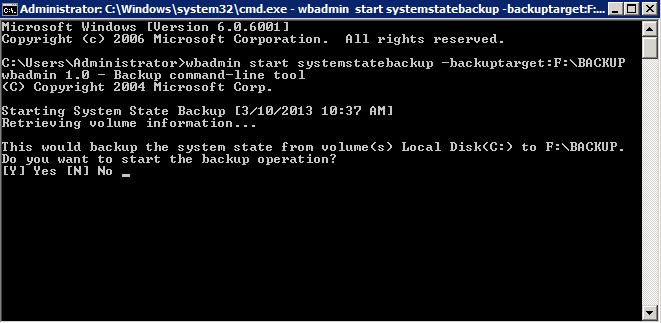
Steps 9 – When backup has been done you will be see the summary of backup and Log path example –
Summary of backup:
--------------------------
Backup of system state completeed successfully [3/10/2013 11:30 AM]
Log of files successfully backed up
'C:\Windows\Logs\WindowsServerBackup\SystemStateBackup 1/10/2013 02-48-18.log'
Restore Active Directory Backup
For Authoritative Restore of Active Directory follow these steps –
Steps 1 – Restart your Server and press F8 for advance option during startup
Steps 2 – Boot from Directory Services Restore mode.
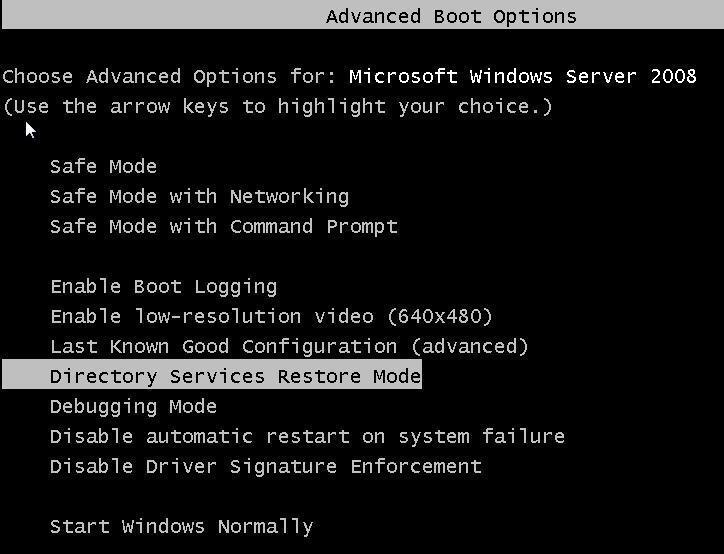
Steps 3 – Login in to your server with Directory Service Restore Mode password which you have already created during Active Directory Installation.
Steps 4 – Now you have to check the version for restore the correct backup
Steps 5 – Open Command Prompt and Type wbadmin get versions and remember your version Identifier. Version will be according to you Backup date and time.
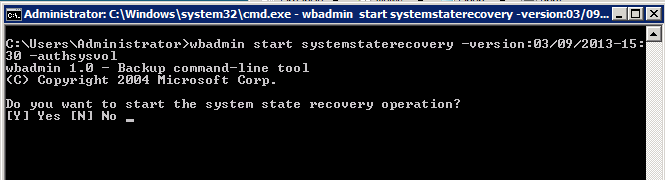
Steps 6 – We need to perform a non-authoritative restore of Active Directory by typing “wbadmin start systemstaterecovery -version:03/09/2013-15:30“
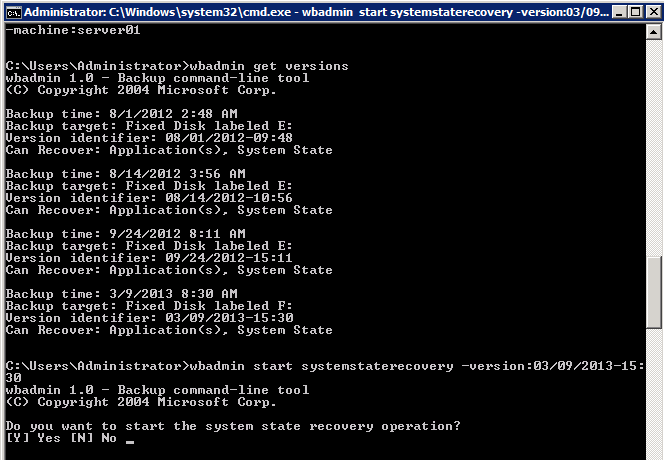
Steps 7 – Press Y to confirm the non-authoritative restore
Steps 8 – You can mark the sysvol as authoritative by adding the–authsysvolswitch to the end of the wbadmin command.